How to Get Merchant, Store, and TPN IDs
If you have already onboarded merchants using the Merchant Onboarding API, the Merchant ID, Store ID, and TPN ID are included in the API response. If you want to, you can manually retrieve these IDs directly from the iPOSpays portal.
Access the Merchant Details
- Go to the iPOSpays Portal and log in using your ISO credentials.
- Go to Merchants.
- Use the search box to find and select the merchant.
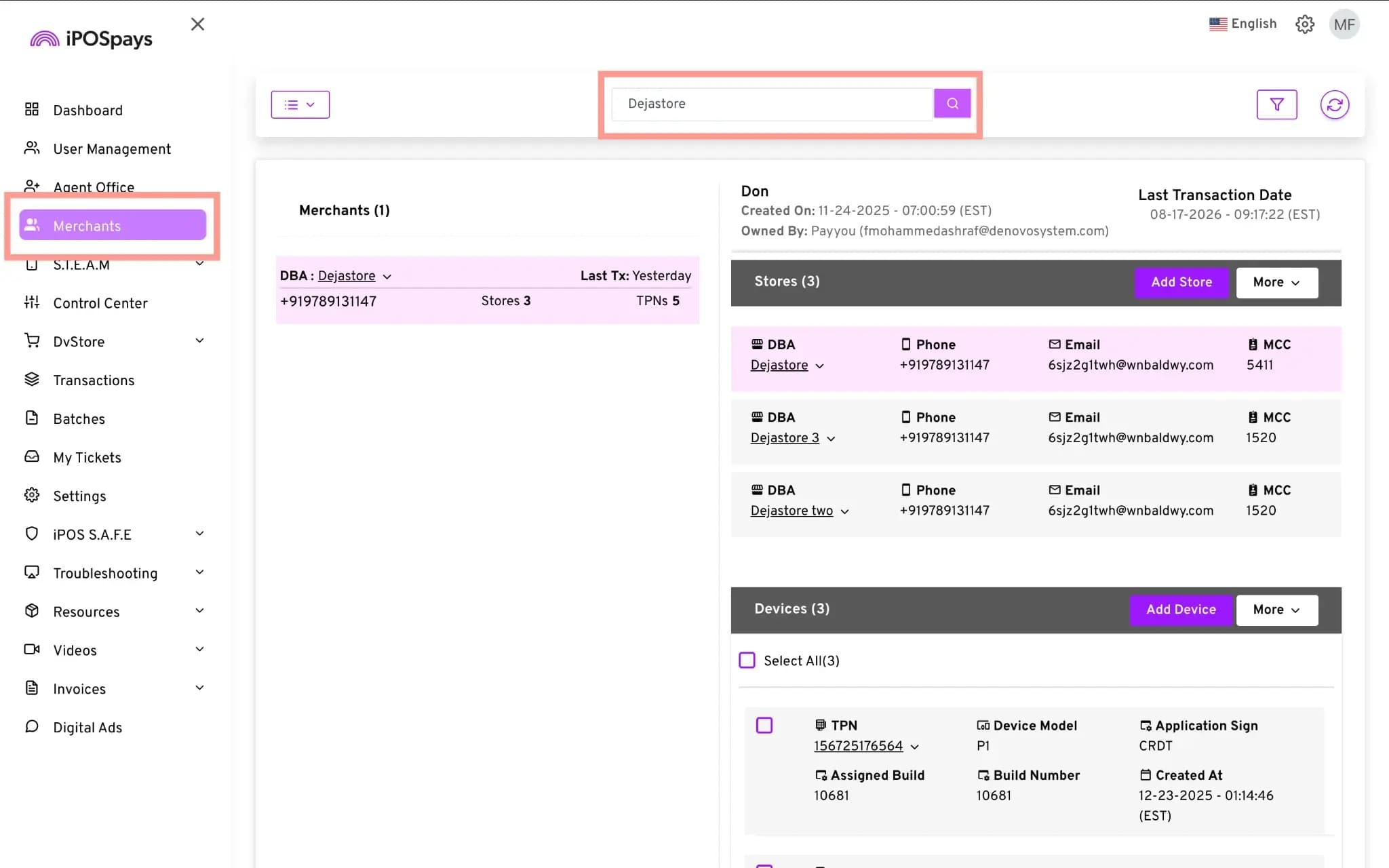
Copy the Merchant ID
- Click the down arrow next to the merchant's DBA name to open the merchant options.
- Select Copy Merchant ID.
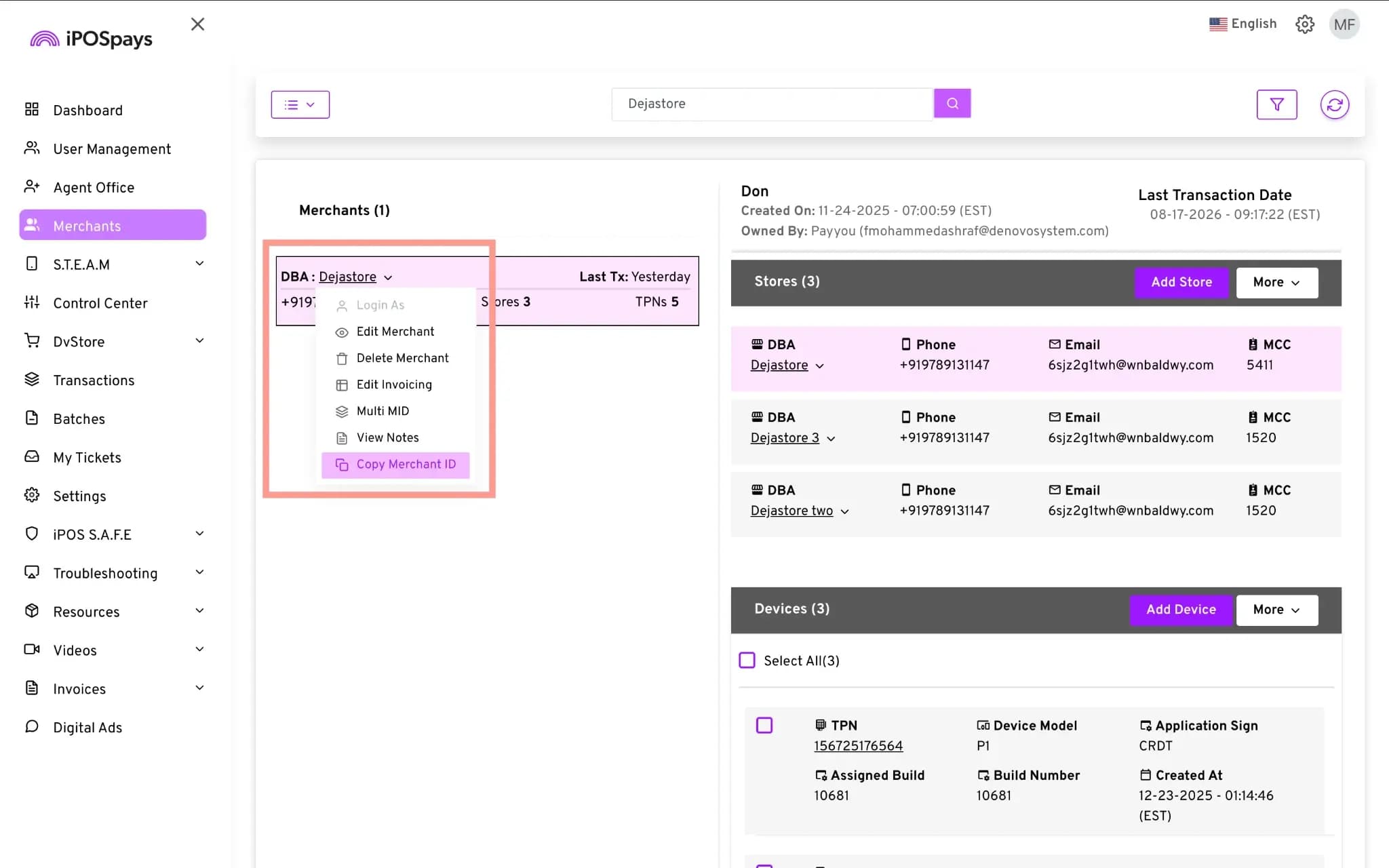
The Merchant ID is copied to your clipboard and can be pasted where needed.
Copy the Store ID
- Click the down arrow next to the store's DBA name to open the store options.
- Select Copy Store ID.
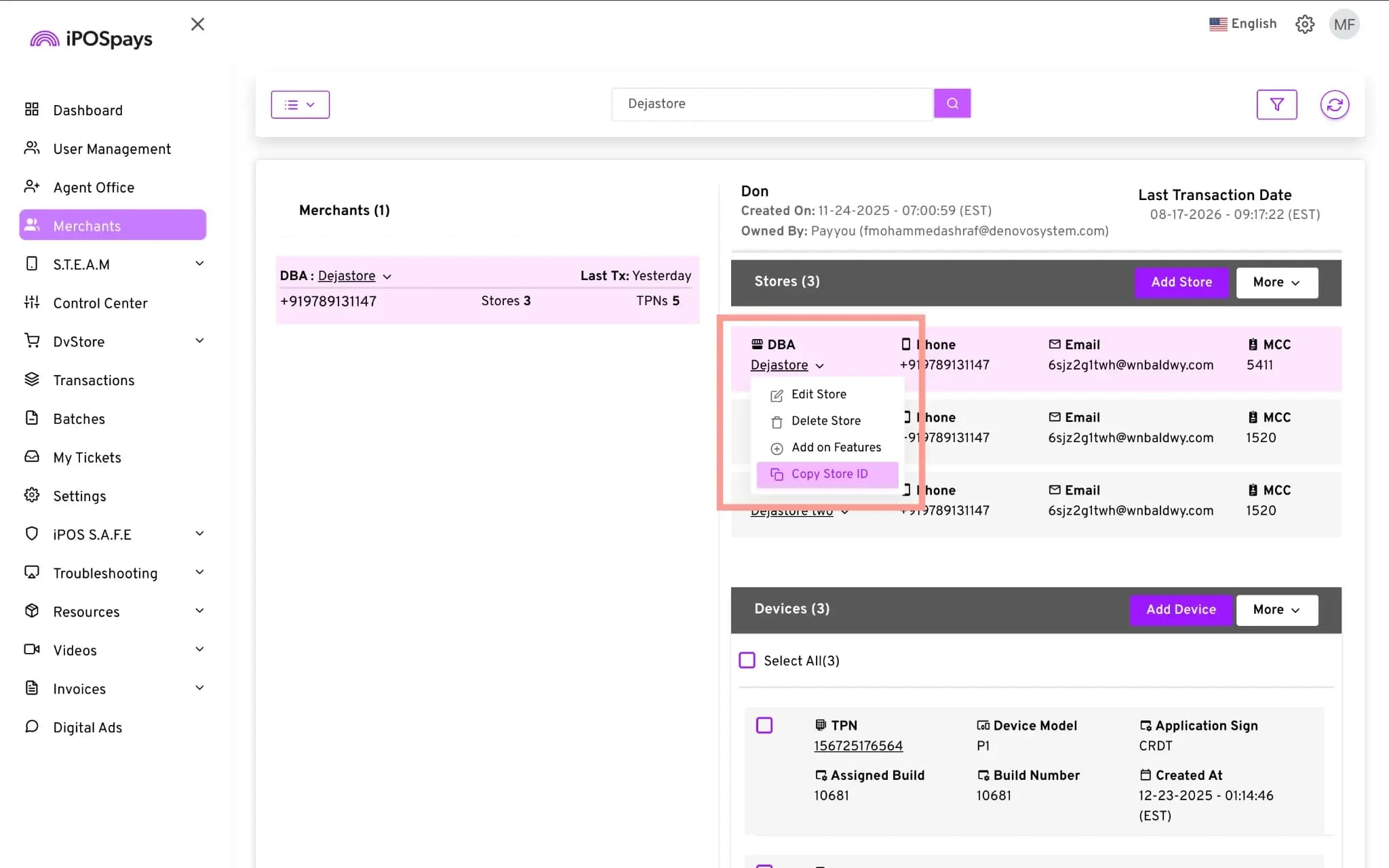
The Store ID is copied to your clipboard and can be pasted where needed.
Copy the TPN ID
- Click the down arrow next to the TPN (Terminal Profile Number) to open the TPN options.
- Select Copy TPN ID.
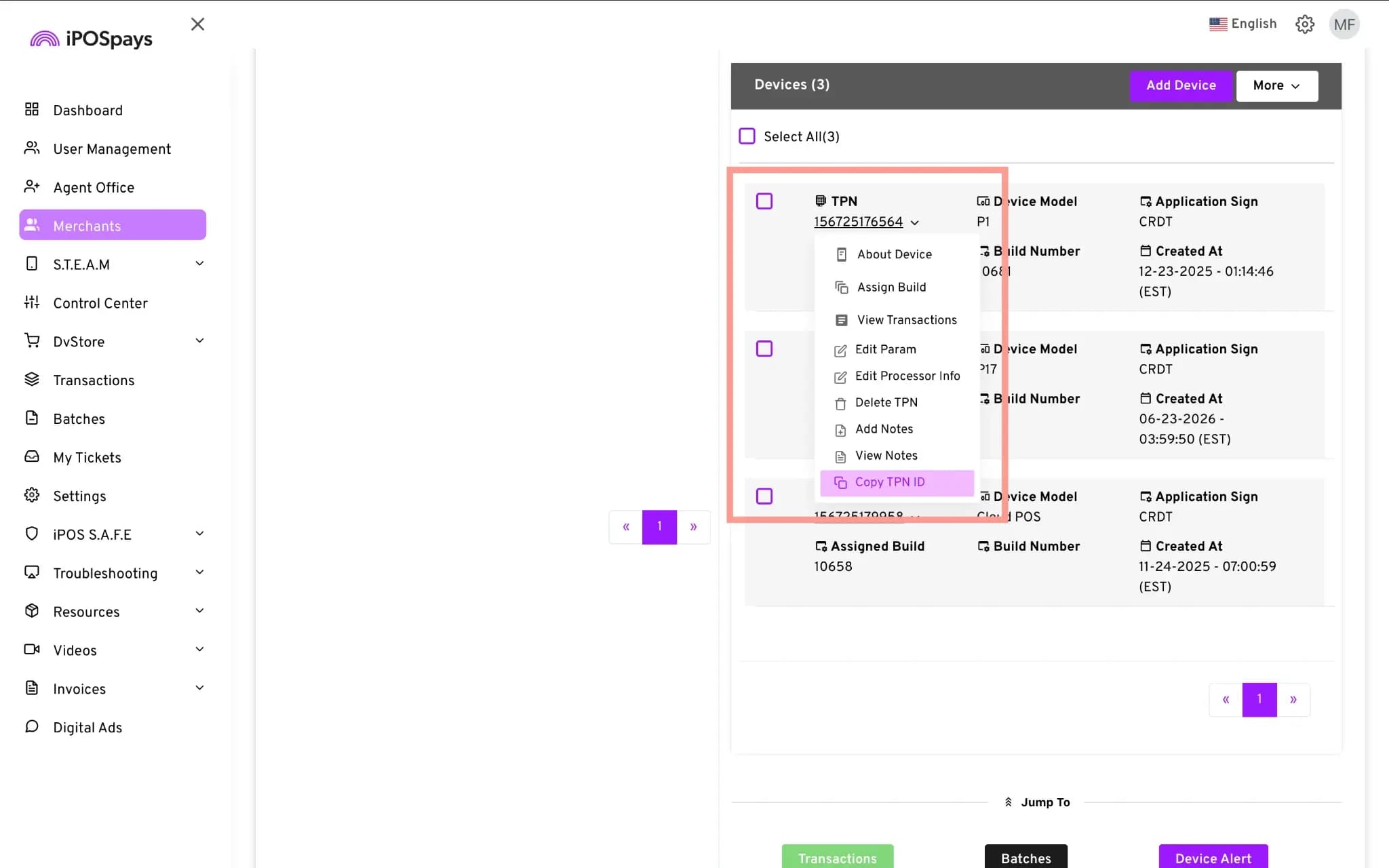
The TPN ID is copied to your clipboard and can be pasted where needed.
Download Merchant Data
If you need the Merchant, Store, and TPN IDs for multiple merchants, you can download the merchant data as an Excel file.
- In the Merchants module, click the menu button in the top-left corner.
- Select Download.
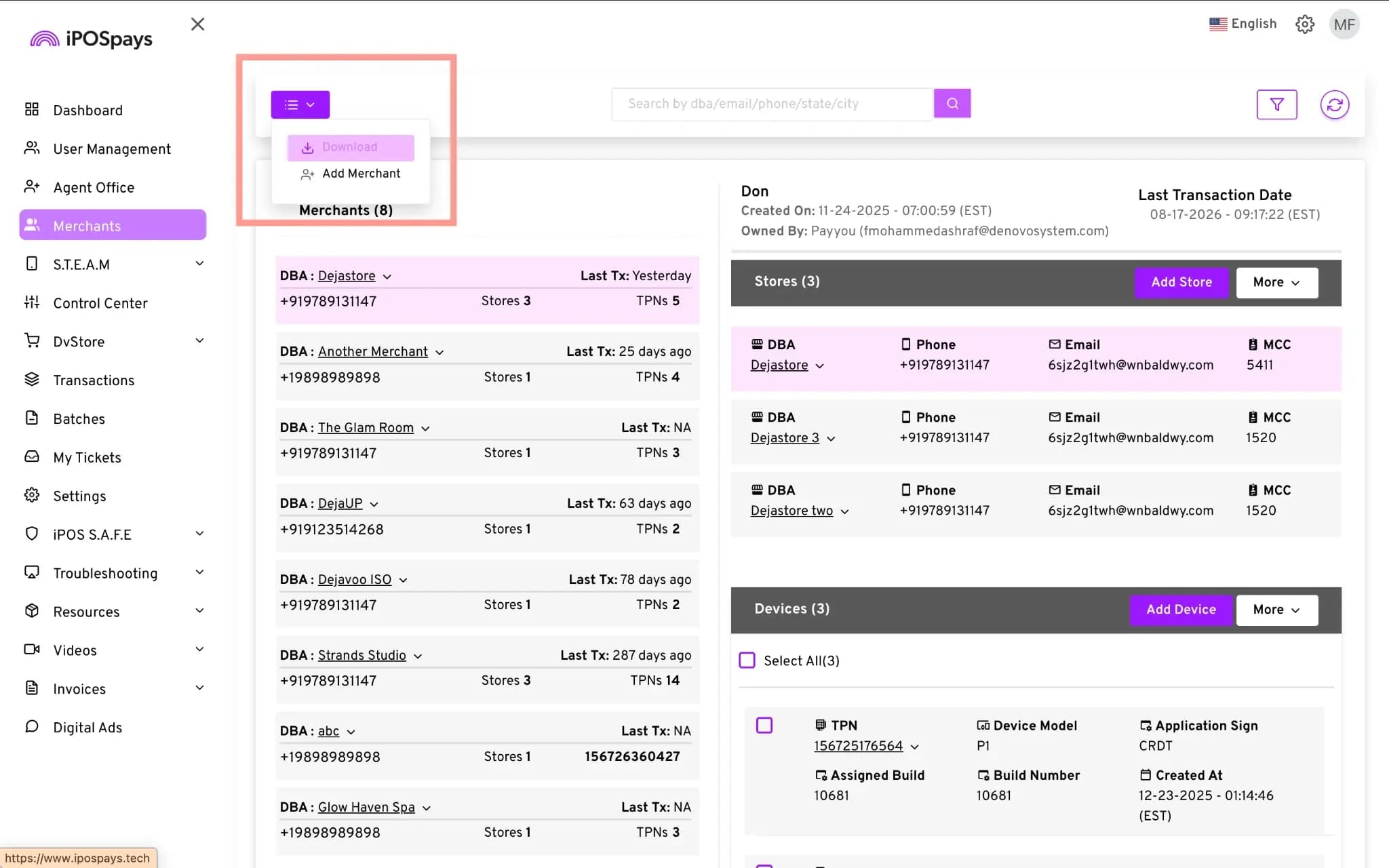
The downloaded Excel file contains your merchants' details, including their Merchant ID, Store ID, and TPN ID.
You can use the downloaded file to map these IDs to the corresponding merchants in your CRM.
Last updated on August 20, 2026